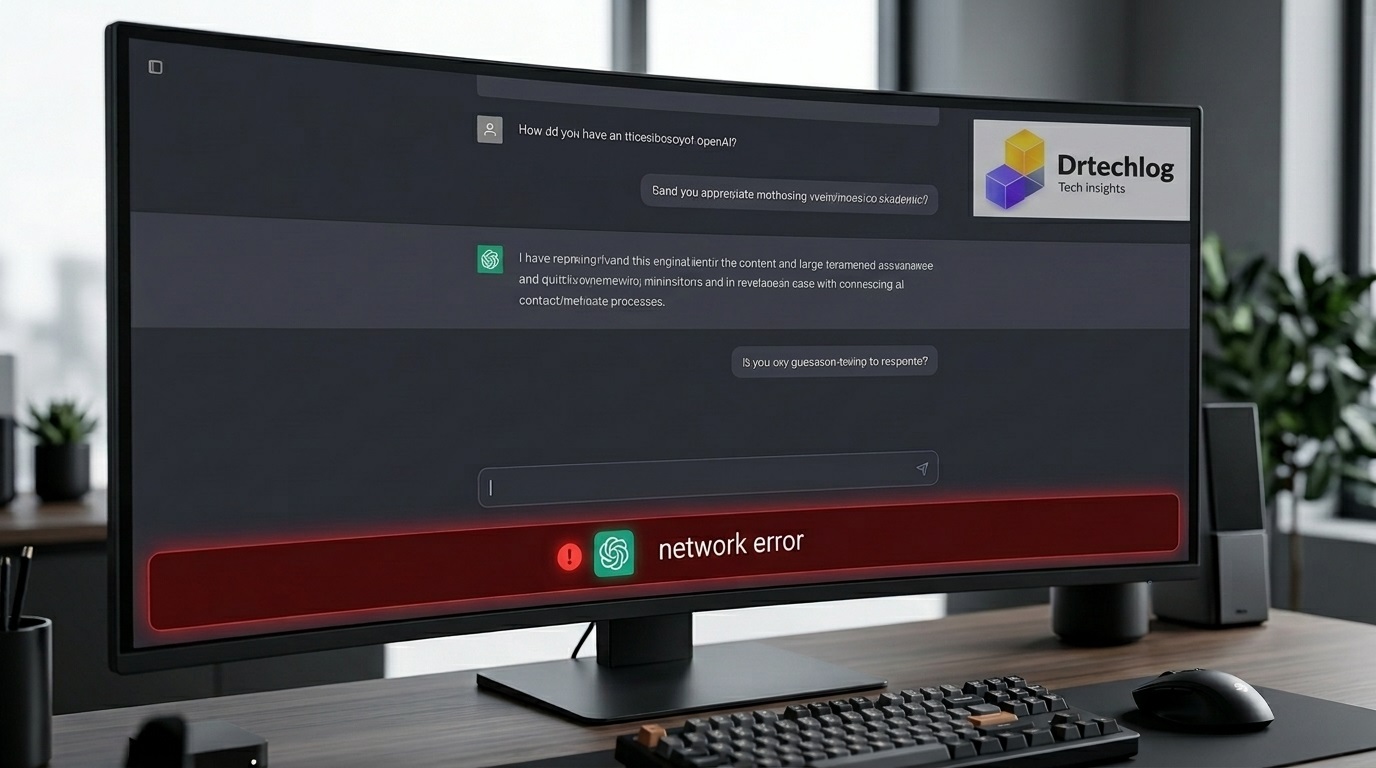
If you frequently rely on ChatGPT for coding, detailed explanations, or writing long essays, you have likely run into a frustrating issue: the ChatGPT Network Error in the middle of a response.
This error typically happens when ChatGPT stops generating text halfway through and displays a message like “Network Error”, “An error occurred”, or “Failed to get response”.
In this comprehensive guide, we will break down why this happens and provide 7 actionable, step-by-step solutions to fix the ChatGPT network error permanently.
Why Does ChatGPT Throw a Network Error on Long Responses?
- Response Timeout Limits: OpenAI enforces strict response timeouts to conserve server resources. If a query takes too long to process or output, the connection drops.
- Unstable Internet Connection: Brief micro-drops in your Wi-Fi or mobile data connection can interrupt the continuous data stream between OpenAI’s servers and your browser.
- Browser Cache and Extension Interference: Ad blockers, privacy extensions, or outdated cache files can block the WebSocket or API connections used by ChatGPT.
- Server Overload: High traffic on OpenAI’s servers can cause response lag, triggering a timeout on the user side.
- VPN / Proxy Conflicts: Certain VPN routes introduce high latency or get flagged by OpenAI’s security systems.
How to Fix ChatGPT Network Error (Step-by-Step)
1. Request Shorter or Chunked Responses
The single most effective fix for long output errors is instructing ChatGPT to deliver its answer in parts.
- Instead of: “Write a 3,000-word detailed article about quantum computing.”
- Try this: “Provide an outline for an article about quantum computing.” followed by “Now write Part 1 based on the outline.”
Pro Tip: You can explicitly add this instruction to your prompt: “Break your response into chunks under 500 words and pause for my confirmation before continuing.”
2. Avoid Asking ChatGPT to Output Massive Code Blocks in One Go
If you are asking ChatGPT to generate complex code scripts, large tables, or long raw text strings, it easily triggers server execution limits.
- Ask the AI to write functions or modules individually.
- Use markdown code blocks step-by-step rather than requesting an entire project file in one prompt.
3. Clear Your Browser Cache and Cookies
Corrupted local data often interferes with OpenAI’s active session scripts.
For Google Chrome / Brave / Edge:
- Open your browser settings.
- Go to Privacy and security > Clear browsing data.
- Select Cookies and other site data and Cached images and files.
- Set the time range to All time and click Clear data.
- Reload ChatGPT and log back in.
4. Disable Conflicting Browser Extensions
- Open ChatGPT in an Incognito / Private Window.
- If it works without errors in Incognito mode, one of your browser extensions is causing the problem.
- Disable your extensions one by one (especially AdBlockers or VPN extensions) to identify the culprit.
5. Disable VPN or Switch Server Locations
- Temporarily disconnect your VPN and refresh the page.
- If you must use a VPN, switch to a low-latency server location close to your actual region.
6. Flush Your DNS Cache (Windows & Mac)
If network requests to chatgpt.com or openai.com keep failing, flushing your DNS cache can resolve outdated routing tables.
On Windows:
ipconfig /flushdnsOn Mac:
sudo dscacheutil -flushcache; sudo killall -HUP mDNSResponder7. Check OpenAI System Status
- Visit the official status page at status.openai.com.
- Check if there are active incidents reported under ChatGPT or API services.
Frequently Asked Questions (FAQ)
What does “Network Error” mean on ChatGPT?
It means the continuous data stream between your web browser and OpenAI’s servers was interrupted before the response finished generating, usually due to a timeout, browser conflict, or network drop.
Why does ChatGPT stop generating text halfway through?
ChatGPT stops generating text when it hits token output limits or when the server detects an inactive network connection lasting longer than its threshold (timeout).
Will upgrading to ChatGPT Plus fix the Network Error?
While ChatGPT Plus provides higher priority access and faster response speeds, it can still experience network errors on exceptionally long prompts if your browser or internet connection drops.
Conclusion
The ChatGPT Network Error on long responses is usually caused by request timeouts, heavy browser extensions, or internet connection instability. By breaking your prompts into manageable chunks, clearing your browser cache, and disabling conflicting plugins, you can eliminate this issue and enjoy uninterrupted AI outputs.
👨💻 About the Author & Site Owner
This technical guide was written, verified, and published by Chiheb Driss, Founder and Lead Editor at DrTechLog (drtechlog.com)[cite: 1.2, 1.3]. Dedicated to providing accurate, tested, and practical solutions for developers, AI users, and tech enthusiasts. Every article on this platform undergoes hands-on validation to ensure absolute reliability and value.
Published by Chiheb Driss | DrTechLog Editorial Standards.
❓ Frequently Asked Questions (FAQ)
Q: What does “Network Error” mean on ChatGPT?
It means the continuous data stream between your web browser and OpenAI’s servers was interrupted before the response finished generating, usually due to a timeout, browser conflict, or network drop.
Q: Why does ChatGPT stop generating text halfway through?
ChatGPT stops generating text when it hits token output limits or when the server detects an inactive network connection lasting longer than its threshold (timeout).
Q: Will upgrading to ChatGPT Plus fix the Network Error?
While ChatGPT Plus provides higher priority access and faster response speeds, it can still experience network errors on exceptionally long prompts if your browser or internet connection drops.