Table of Contents
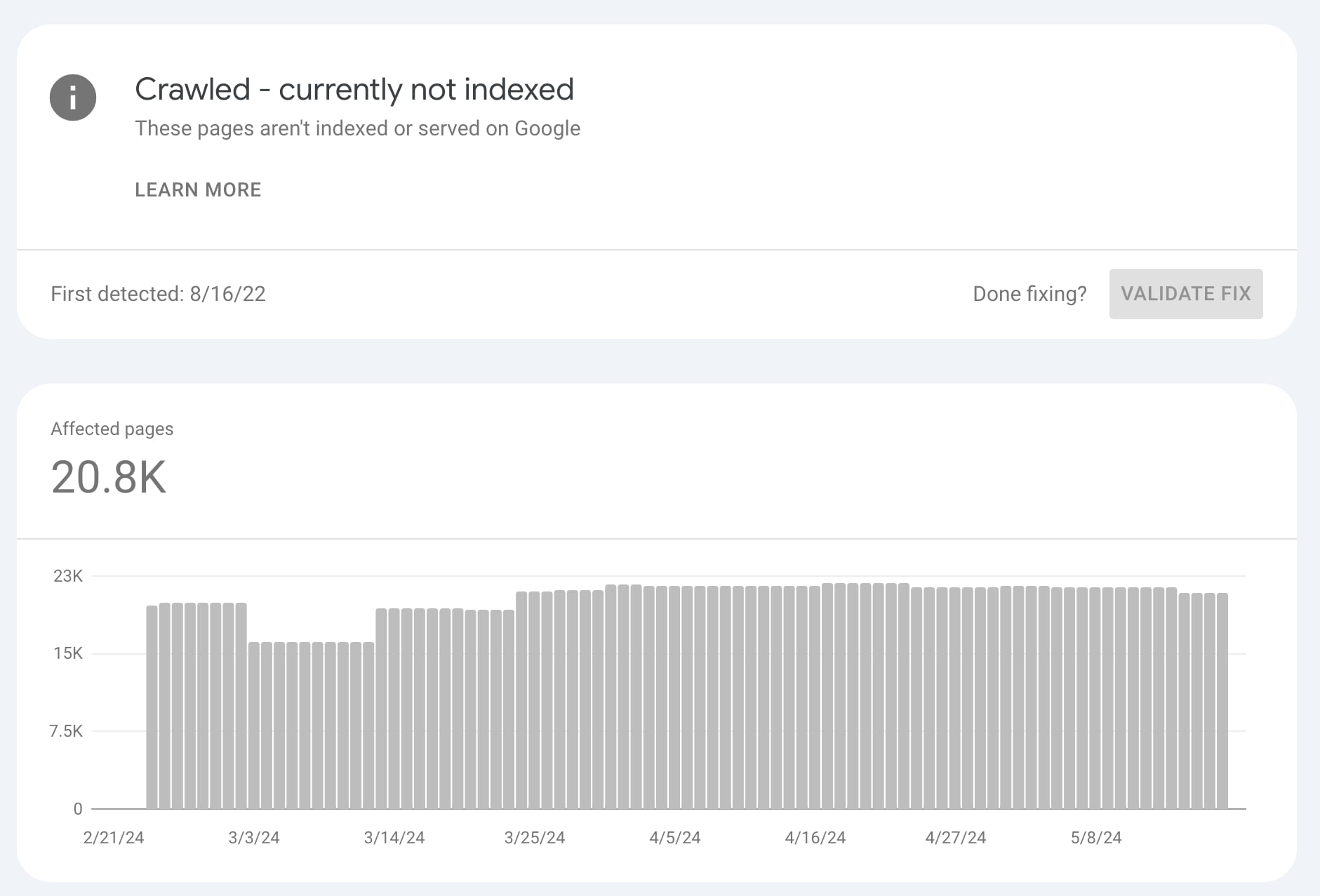
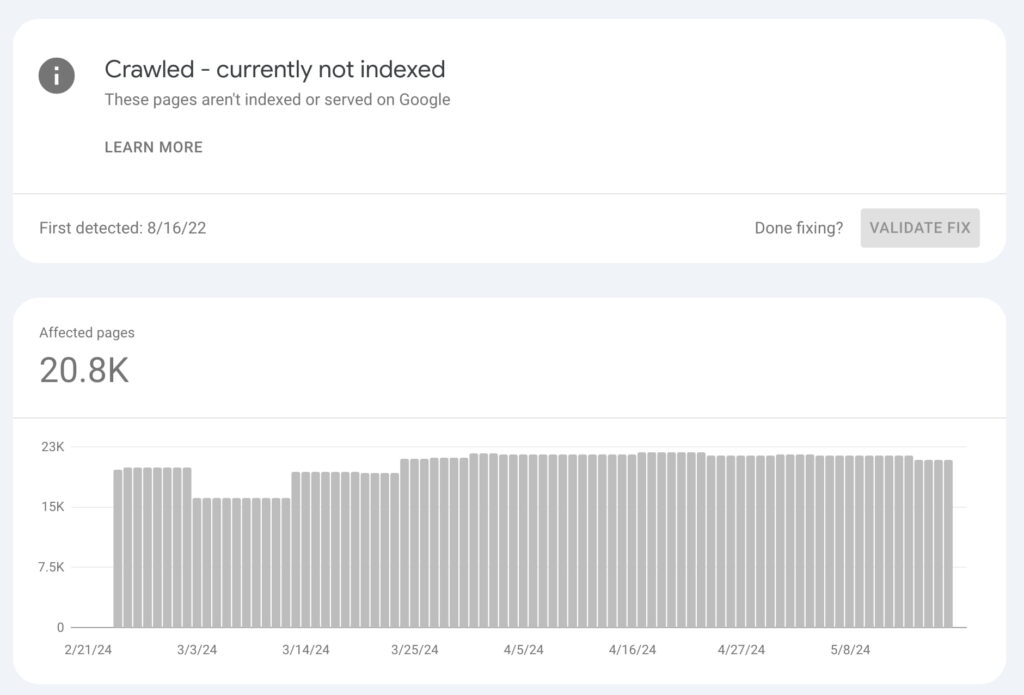
If you’ve opened Google Search Console and discovered the frustrating “Crawled – Currently Not Indexed” status, you’re not alone.
Thousands of website owners see this warning every day and immediately assume Google has found a serious problem with their site.
The good news?
In most cases, your website isn’t penalized, and this issue can often be resolved by improving your pages rather than making complicated technical changes.
In this complete guide, you’ll learn:
- What “Crawled – Currently Not Indexed” actually means
- Why Google decides not to index pages
- The most common causes
- Step-by-step solutions
- How to prevent the issue from happening again
- Advanced SEO tips used by professionals
Let’s begin.
What Does “Crawled – Currently Not Indexed” Mean?
When Google reports “Crawled – Currently Not Indexed”, it means something very specific.
Googlebot successfully visited your page.
It downloaded the content.
It analyzed the HTML.
It followed the links.
But after reviewing the page, Google decided not to include it in its search index—for now.
Notice the important part:
Google can access your page.
It simply decided that the page isn’t worth indexing at this moment.
This is completely different from errors like:
- Blocked by robots.txt
- 404 Not Found
- Redirect Error
- Server Error (5xx)
Those indicate technical problems.
“Crawled – Currently Not Indexed” is usually a quality evaluation rather than a crawling problem.
Why Does Google Do This?
Google indexes billions of pages every day.
Not every page deserves a place in its search results.
Google tries to save resources by indexing only pages that provide enough value.
If multiple pages contain similar information…
If a page looks too thin…
If another website explains the same topic better…
Google may simply decide not to index yours.
This doesn’t necessarily mean your content is bad.
It only means Google currently believes other pages are more useful.
The Most Common Reasons
1. Thin Content
One of the biggest reasons.
Imagine writing a 250-word article called:
Best Windows Tips
without screenshots, examples, or detailed explanations.
Google compares that page with thousands of comprehensive guides containing:
- Images
- Videos
- Step-by-step instructions
- FAQs
- Expert advice
Which page would you choose?
Exactly.
Aim for helpful, complete, and original content instead of short summaries.
2. Duplicate Content
If your article says almost the same thing as dozens of other websites, Google may skip indexing it.
Instead of copying information:
✔ Add original research
✔ Add screenshots
✔ Add personal experience
✔ Include testing results
✔ Include real examples
Unique content almost always performs better.
3. Low Authority Website
New websites often experience this issue.
Google simply doesn’t trust them yet.
Authority grows with:
- Quality backlinks
- Helpful articles
- User engagement
- Consistent publishing
- Time
Don’t panic if several pages remain unindexed during your first months.
4. Weak Internal Linking
Many website owners publish articles and never link to them again.
From Google’s perspective, those pages appear isolated.
Every important article should receive internal links from related content.
For example, if DrTechLog has articles about:
- Google Search Console
- SEO
- WordPress
- Technical SEO
- XML Sitemaps
link them naturally to this guide.
Example anchors:
- Technical SEO checklist
- Google Search Console guide
- XML Sitemap tutorial
- Rank Math SEO settings
- Website indexing guide
Google uses these links to better understand the importance of your pages.
How to Fix “Crawled – Currently Not Indexed”
There isn’t a magic button that forces Google to index your pages.
Instead, you need to convince Google that your content deserves to be indexed.
Let’s go through the most effective solutions.
1. Improve Content Quality
The number one reason pages remain unindexed is that they don’t provide enough value.
Ask yourself these questions:
- Does this article answer every possible question a visitor might have?
- Is it better than the top 5 Google results?
- Does it contain original information?
- Would I bookmark this page?
If the answer is “No” to any of these, improve the article before requesting indexing.
Add:
- Original screenshots
- Real examples
- Personal testing
- Statistics
- FAQs
- Comparison tables
- Step-by-step instructions
Google prefers pages that solve a user’s problem completely.
2. Check for Duplicate Content
Duplicate content is one of the biggest indexing killers.
Examples include:
- Publishing nearly identical articles.
- AI-generated content with minimal editing.
- Multiple URLs showing the same page.
- Category and tag pages competing with articles.
Use Google Search Console to identify duplicate URLs.
Then:
- Merge similar articles.
- Redirect unnecessary pages.
- Use canonical tags where appropriate.
3. Strengthen Internal Linking
Internal links help Google discover and prioritize pages.
For this article, I recommend linking to relevant DrTechLog content using natural anchor text.
For example:
| Anchor Text | Link To |
|---|---|
| Technical SEO Guide | Your Technical SEO article |
| Rank Math Settings | Your Rank Math tutorial |
| XML Sitemap Guide | Sitemap article |
| WordPress SEO Tips | WordPress article |
| Improve Website Speed | Speed optimization guide |
Aim for 5–10 internal links in this article.
Likewise, go back to older articles and add links pointing to this guide. This creates a stronger internal linking structure.
4. Build Topical Authority
Google doesn’t just evaluate individual pages—it also evaluates how deeply your site covers a topic.
Instead of publishing one SEO article, create a cluster like this:
- Google Search Console Beginner Guide
- XML Sitemap Explained
- Robots.txt Guide
- Canonical Tags
- Core Web Vitals
- Page Experience
- Crawl Budget
- Index Coverage Errors
- Why Google Doesn’t Index Pages
- How to Fix Crawled – Currently Not Indexed (this article)
When these articles link to each other, Google sees your site as an authority on Technical SEO.
5. Request Indexing Correctly

After improving the page:
- Open Google Search Console.
- Use the URL Inspection tool.
- Paste the page URL.
- Click Test Live URL.
- If everything is fine, click Request Indexing.
Don’t request indexing repeatedly. Google may ignore excessive requests.
6. Improve Page Speed
Slow pages are less attractive for indexing.
Optimize:
- Images (WebP or AVIF)
- CSS
- JavaScript
- Lazy loading
- Browser caching
- CDN (Cloudflare recommended)
A fast page improves both user experience and crawl efficiency.
7. Check Your Robots.txt
Make sure you are not accidentally blocking Googlebot.
A basic robots.txt should allow crawling of your content while referencing your sitemap.
Also verify that important pages are not marked with noindex.
8. Submit an Updated XML Sitemap
If you’re using Rank Math, generate an XML sitemap and submit it in Google Search Console.
Whenever you publish new content, ensure it’s included in the sitemap.
This helps Google discover new pages faster.
Rank Math Settings (Recommended)
For this article, use:
- Focus Keyword: Crawled Currently Not Indexed
- Permalink:
/fix-crawled-currently-not-indexed/ - SEO Title: How to Fix “Crawled – Currently Not Indexed” (2026 Guide)
- Meta Description: (the one provided earlier)
- Schema:
Article - Add an FAQ Schema section at the end (Rank Math can generate it automatically).
Keep the URL short and descriptive, and avoid changing it after publication.
Suggested Internal Links for DrTechLog
If you already have articles covering these topics, link to them naturally from this guide:
- WordPress SEO
- Rank Math setup
- Google Search Console
- XML Sitemap
- Robots.txt
- Core Web Vitals
- Website speed optimization
- AI content best practices (if relevant)
If any of these articles don’t exist yet, create them. They will strengthen this guide and your site’s overall SEO.
Frequently Asked Questions
Why is Google crawling my page but not indexing it?
Google has successfully visited your page, but its algorithms determined that the content is not valuable enough—or not sufficiently unique—to include in the search index at this time. This is usually a quality or relevance issue rather than a technical error.
How long does Google take to index a page?
There is no fixed timeframe. Some pages are indexed within a few hours, while others may take several weeks. Improving content quality, internal linking, and website authority can speed up the process.
Can I force Google to index my page?
No. The Request Indexing feature in Google Search Console only asks Google to review the page again. Google ultimately decides whether the page should be indexed.
Does “Crawled – Currently Not Indexed” hurt SEO?
Not directly. However, if many important pages remain unindexed, your website will receive less organic traffic because those pages cannot appear in Google Search results.
Should I delete pages that aren’t indexed?
Not immediately.
First, improve the content.
If the page still isn’t indexed after several weeks and offers little value, consider merging it with a stronger article or redirecting it to a more comprehensive page.
Can AI-generated content cause this issue?
AI-generated content by itself is not the problem. The issue arises when the content is generic, repetitive, inaccurate, or provides little original value. Well-edited, useful, and unique AI-assisted content can still perform well.
Final Thoughts
Receiving the “Crawled – Currently Not Indexed” status can be frustrating, but it is not a penalty and doesn’t necessarily mean something is wrong with your website.
In most cases, Google is simply waiting for stronger signals that your page deserves a place in its index.
Focus on creating genuinely helpful content, strengthening your internal linking, improving your website’s authority, and maintaining a consistent publishing schedule. Over time, these efforts significantly increase your chances of getting indexed—and ranking higher.
Remember: Google’s goal is to show users the best possible answers. If your content becomes one of those answers, indexing usually follows naturally.
Official Google Resources
-
Google Search Central – Crawling & Indexing Documentation
https://developers.google.com/search/docs/crawling-indexing -
Google Search Console Help Center
https://support.google.com/webmasters/ -
URL Inspection Tool Documentation
https://support.google.com/webmasters/answer/9012289 -
Google Search Essentials – Creating Helpful Content
https://developers.google.com/search/docs/fundamentals/creating-helpful-content -
XML Sitemaps Overview
https://developers.google.com/search/docs/crawling-indexing/sitemaps/overview -
Robots.txt Documentation
https://developers.google.com/search/docs/crawling-indexing/robots/intro -
Canonical URLs Documentation
https://developers.google.com/search/docs/crawling-indexing/consolidate-duplicate-urls