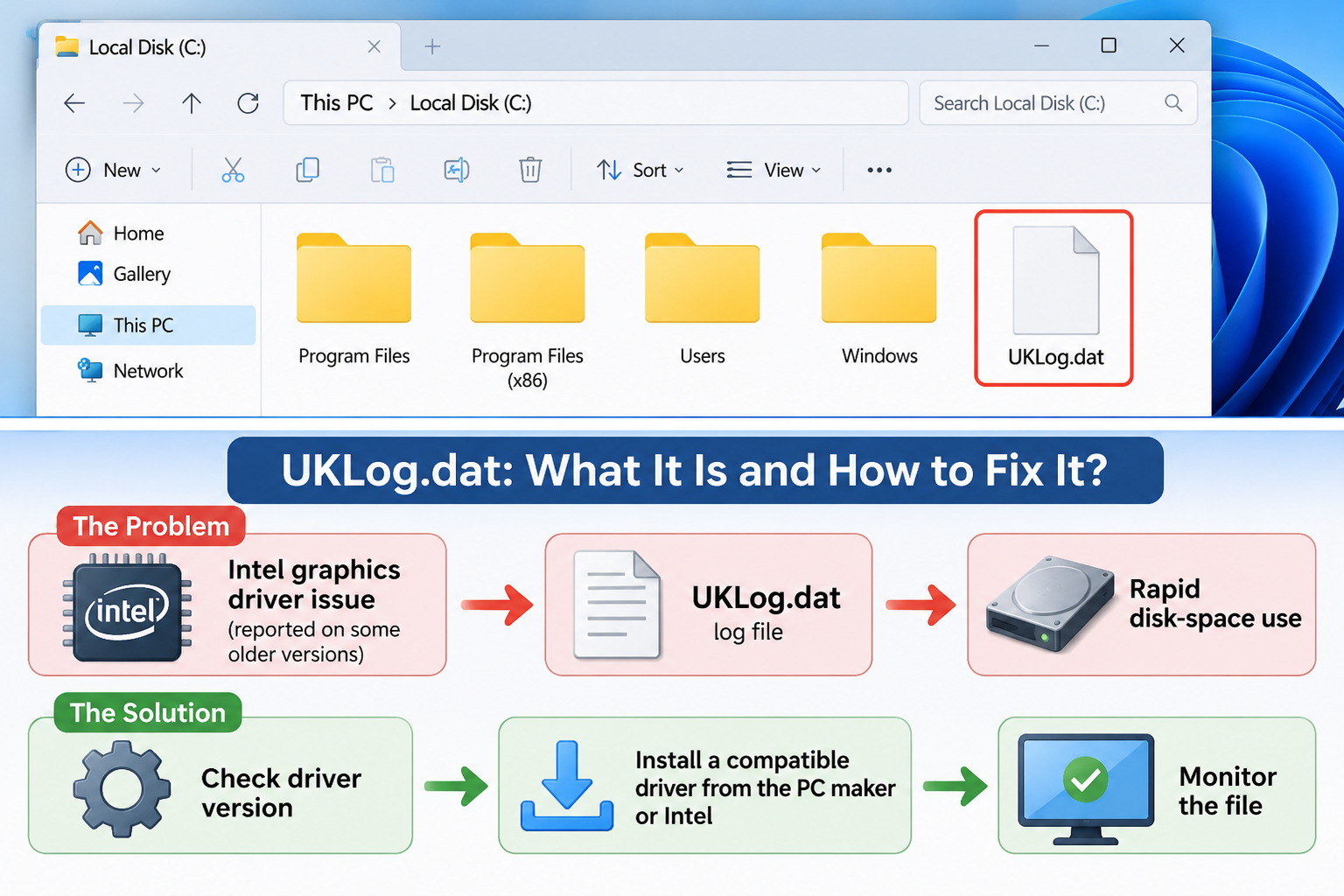
WINDOWS TROUBLESHOOTING GUIDE
UKLog.dat File in Windows 10 and 11: What Is It and How to Fix It?
Understand this unusual Windows file, investigate why it may grow, and learn how to troubleshoot it safely.
Windows 10 · Windows 11 · Intel Graphics · PC Storage
Have you noticed a file named UKLog.dat on your Windows computer? You may be wondering what it does, whether it is dangerous, or why it keeps taking up space on your C: drive.
Some Windows users have reported that this file repeatedly grows in size. Historical troubleshooting discussions have linked certain cases to Intel graphics drivers. However, the exact cause is not officially established for every computer.
In this guide, we explain what is known about the UKLog.dat file, how to investigate it, and which troubleshooting steps are worth trying before deleting it.
1. What Is UKLog.dat?
UKLog.dat is the name of a data file reported by some Windows users. The .dat extension is a generic data-file extension; it does not tell you which application created the file or what its exact purpose is.
In several historical troubleshooting reports, users associated UKLog.dat with graphics-related activity and Intel display drivers. However, Microsoft and Intel documentation does not establish a universal explanation for every file with this name.
2. Where Can You Find UKLog.dat?
One reported location is the root directory of the Windows system drive:
C:\UKLog.datTo check whether the file exists:
- Open File Explorer.
- Select This PC.
- Open Local Disk (C:).
- Look for a file named
UKLog.dat. - Right-click it and select Properties.
Check its size, creation date if available, and last modified date. These details can help you determine whether it is growing or being recreated.
3. Is UKLog.dat Related to Intel Graphics Drivers?
There are historical reports suggesting a connection between UKLog.dat and certain Intel graphics driver configurations.
In an October 2020 Microsoft Q&A discussion, a user reported that UKLog.dat was repeatedly growing and consuming disk space. A response suggested investigating the Intel graphics display driver. The user later reported that the file stopped returning after switching to the Windows graphics driver.
This is a user-reported troubleshooting case, not an official confirmation that Intel drivers always create UKLog.dat.
Intel recommends identifying the graphics hardware and choosing a compatible driver. For laptops and branded PCs, the manufacturer’s driver may be preferable because it can include device-specific customizations.
Useful official resources:
- Intel Graphics Drivers: Official Driver List
- How to Identify Your Intel Graphics Driver Version
- Intel Driver & Support Assistant
4. Is UKLog.dat a Virus?
The filename alone cannot determine whether a file is malicious.
Some historical UKLog.dat reports describe a graphics-driver-related problem rather than confirmed malware. Nevertheless, you should not trust an unfamiliar file without checking it.
Use these checks:
- Verify the exact file location.
- Check its file size and modification date.
- Scan the file using Microsoft Defender or another trusted security solution.
- Investigate any unusual behaviour occurring at the same time.
5. Why Does UKLog.dat Keep Growing?
Some users have reported that the file grows continuously and consumes a large amount of disk space.
One Microsoft Q&A report from October 2020 described a file growing by approximately 4 GB over two days. The discussion involved a suspected Intel graphics driver issue.
Possible explanations in a case like this include:
- A graphics-driver logging problem.
- A software component repeatedly writing diagnostic data.
- A driver or application update that changes file-generation behaviour.
These are troubleshooting possibilities, not a confirmed diagnosis for every UKLog.dat file.
6. How to Investigate the UKLog.dat File
Before changing drivers or deleting anything, identify your graphics adapter and current driver version.
Step 1: Open Device Manager
Right-click the Windows Start button and select Device Manager.
Step 2: Find Display Adapters
Expand the Display adapters category. Check whether your computer uses Intel UHD Graphics, Intel Iris Xe Graphics, Intel HD Graphics, or another adapter.
Step 3: Check the Driver Version
Right-click the Intel graphics adapter, select Properties, and open the Driver tab.
Record the driver provider, version, and date. Compare them with the latest compatible driver listed by your computer manufacturer or Intel.
7. How to Troubleshoot UKLog.dat Safely
-
Record the file size.
Write down the current size and modification date. Check again later to see whether it has increased.
-
Identify your graphics driver.
Use Device Manager to identify the adapter and driver version.
-
Check for a compatible update.
Visit your computer manufacturer’s support page first. If appropriate, use the official Intel Driver & Support Assistant.
-
Consider a driver rollback.
If the problem started immediately after a graphics driver update, check whether Device Manager offers the Roll Back Driver option. Follow the manufacturer’s instructions.
-
Restart Windows and monitor the file.
After a driver change, restart your PC and check whether UKLog.dat returns or continues growing.
-
Seek technical support if the problem continues.
Provide your PC model, Windows version, graphics adapter, driver version, and the file’s size history.
8. Can You Delete UKLog.dat?
Do not delete the file simply because its name looks unfamiliar.
If you have verified the file’s location, scanned it, and established that it is a leftover diagnostic file rather than an active component, removal may be possible. However, if the software or driver that created it is still active, the file may return.
If Windows reports that the file is currently in use, do not force-delete it. Investigate the responsible process or seek assistance from your device manufacturer.
9. Frequently Asked Questions
What is UKLog.dat in Windows 10?
UKLog.dat is a data filename reported by some Windows users. Historical cases have associated it with graphics-driver activity, but its exact purpose cannot be established from the filename alone.
Is UKLog.dat a virus?
Not necessarily. Historical reports have linked some cases to graphics-driver logging. Scan unfamiliar files and verify their location before deciding whether they are safe.
Why is UKLog.dat taking up so much disk space?
Some users have reported rapid file growth. A historical Microsoft Q&A discussion suggested a possible Intel graphics driver connection, but the cause should be investigated on each computer.
Can I delete UKLog.dat?
Only after verifying the file and investigating what created it. Deleting it without fixing the underlying cause may not prevent it from returning.
Does updating Intel Graphics fix UKLog.dat?
It may help in cases involving an affected graphics driver. Always select a driver compatible with your exact PC model and graphics hardware.
Does this problem affect every Windows 11 computer?
No. The historical reports cited here do not establish that every Windows 11 computer is affected.
Conclusion
The UKLog.dat file is an unusual Windows file that has appeared in reports involving unexpected disk-space consumption. Some historical cases suggest a connection with Intel graphics drivers, but there is no universal explanation for every file with this name.
The safest solution is to check the file’s location and size, identify your graphics driver, install a compatible update if needed, and monitor the result. Avoid downloading unknown replacement files or deleting system-related data without first understanding its purpose.
Sources and Further Reading
- Microsoft Q&A – Constantly Growing UKLog.dat File
- Intel – List of Drivers for Intel Graphics
- Intel – Identify Your Graphics Driver Version
- Intel – Driver & Support Assistant
Last reviewed: November 2026. This article is based on available technical documentation and historical user reports. Driver behaviour may differ depending on hardware, Windows version, and manufacturer configuration.