Running a Quake Live dedicated server on Windows is still possible and reliable in 2026 if it’s configured correctly. This exclusive DrTechLog guide is based on real-world experience, long-term community practices, and common pitfalls that are not documented officially.
This article goes beyond basic setup and covers:
- Proper SteamCMD installation
- Steam support (Steamworks DLLs)
- Server configuration best practices
- Autorestart & crash handling
- Performance fixes (100% CPU bug)
- Firewall & port forwarding
- Workshop map limitations on Windows
Summary
Table of Contents
Requirements
Before starting, you should already understand:
- Basic Windows administration
- How SteamCMD works
- Port forwarding & firewall rules
- Basic server configuration files
You will need:
- A Steam account that owns Quake Live
- Windows 10 / Windows Server 2016+
- Stable internet connection (VPS or dedicated machine recommended)
Step 1: Install Quake Live Server Using SteamCMD
- Download and extract SteamCMD
- Launch
steamcmd.exe - Log in using an account that owns Quake Live
login your_steam_username
- Install Quake Live server files:
app_update 282440 validate
- Install Steamworks SDK Redistributables:
app_update 1007 validate
Once completed, Quake Live will be installed under:
steamapps\common\Quake Live
Step 2: Enable Steam Support (CRITICAL)
Without Steam support, your server will:
- Not appear correctly in Steam server list
- Fail workshop integration
- Reject some client connections
Fix:
- Navigate to:
steamapps\common\Steamworks SDK Redist
- Copy all
.dllfiles - Paste them into:
steamapps\common\Quake Live
This step is mandatory.
Step 3: Server Configuration
Go to:
steamapps\common\Quake Live\baseq3

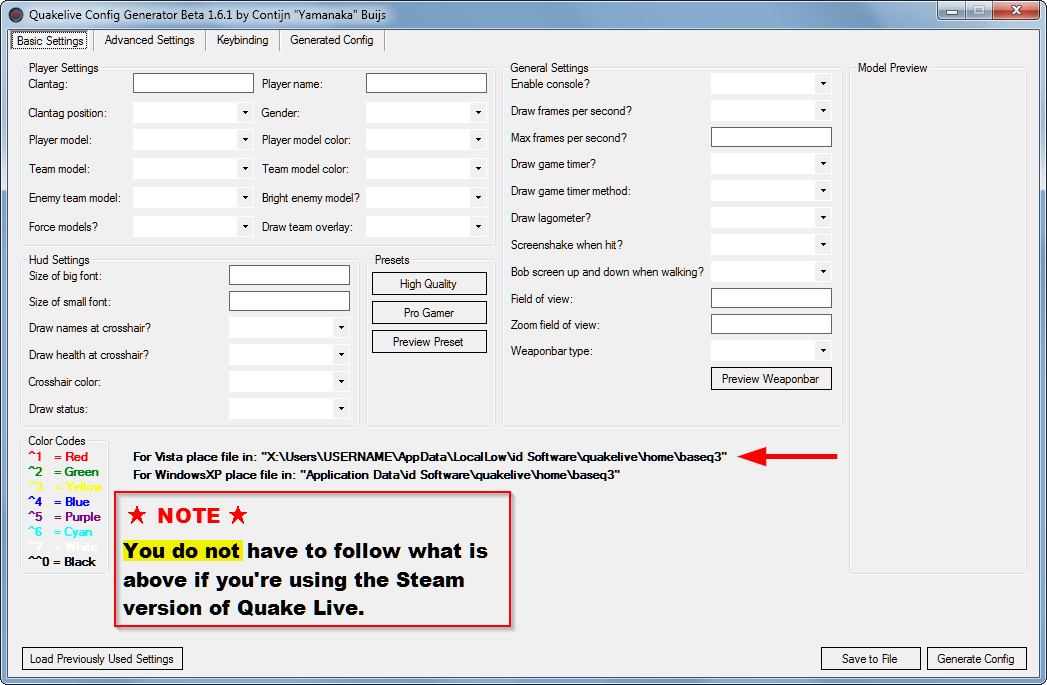
You’ll find:
server.cfgaccess.txt
Recommended server.cfg additions:
set sv_hostname "DrTechLog Quake Live Server"
set sv_maxclients "16"
set sv_fps "40"
set g_allowvote "1"
set g_inactivity "0"
Fix “Unpure client detected” error:
Add at the bottom of server.cfg:
set sv_pure "0"
⚠️ IMPORTANT WARNING
DO NOT set or uncomment:
net_ip
This option is bugged on Windows and may:
- Prevent server from appearing online
- Block direct connections
Step 4: Starting the Dedicated Server (Hidden Command)
Quake Live does not have a visible server executable.
Instead, it uses a hidden launch parameter:
+set dedicated 1
Basic launch command:
quakelive_steam.exe +set dedicated 1
Recommended batch file (high priority):
start /wait /abovenormal quakelive_steam.exe +set dedicated 1
Save as:
start_server.bat
Step 5: Fix 100% CPU Core Usage Bug
If the server runs for many hours/days:
- One CPU core may spike to 100% usage
- Happens even when server is empty
Solution: Auto-restart every 24 hours
Auto shutdown script:
@echo off
cls
title Quake Live 24h Shutdown
:loop
timeout 86400
taskkill /IM quakelive_steam.exe
goto loop
Auto restart script:
@echo off
cls
title Quake Live Auto Restart
:loop
timeout 10
start /wait /abovenormal quakelive_steam.exe +set dedicated 1
goto loop
Use the restart script as the main launcher.
Step 6: Prevent “Quake Live Has Stopped Working” Popup
When Quake Live crashes on Windows, a popup appears waiting for user input.
This blocks auto-restart scripts.
Fix via Group Policy:
- Run
gpedit.msc - Go to:
Computer Configuration
→ Administrative Templates
→ Windows Components
→ Windows Error Reporting
- Enable:
Prevent display of the user interface for critical errors
No reboot required.
Step 7: Firewall & Ports
Make sure these ports are open:
| Port | Protocol | Description |
|---|---|---|
| 27960 | UDP | Game traffic |
| 27950 | UDP | Heartbeat |
| 27015 | UDP/TCP | Steam services |
Windows Firewall:
- Allow
quakelive_steam.exe - Allow inbound & outbound UDP
Workshop Maps on Windows (Reality Check)
⚠️ Important limitation:
On Windows dedicated servers, Steam Workshop integration is unreliable.
Common behavior:
- Maps load locally
- Clients are NOT auto-downloaded maps
- Console shows:
WARNING: Skipping workshop, ISteamUGC is NULL
Current workaround:
- Manually copy
.pk3files tobaseq3 - Ask players to subscribe manually
For full Workshop support, Linux servers are strongly recommended.
Stability & Performance Tips
- Use SSD storage
- Avoid VPN tunnel interfaces
- Set server process priority to Above Normal
- Restart every 12–24 hours
- Avoid excessive mods
Final Notes
Despite being unofficial and partially legacy, Quake Live dedicated servers on Windows still work well when configured correctly.
For:
- LAN servers
- Community servers
- Testing environments
Windows remains a viable solution.
Exclusive guide by DrTechLog
If you want:
- Linux guide
- Docker version
- Multi-server management
- SEO-optimized Quake Live content
👉 Follow drtechlog.com
Q1: Can you host a Quake Live dedicated server on Windows?
Yes, Quake Live dedicated servers can still run on Windows using SteamCMD, although Linux is more officially supported.
Q2: Why does Quake Live server use 100% CPU?
This happens when the server runs for long periods. Restarting the server every 12–24 hours fixes the issue.
Q3: Does Steam Workshop work on Windows servers?
Workshop maps may load locally but usually won’t auto-download for players on Windows servers.
Q4: Which ports are required for Quake Live servers?
UDP 27960, UDP 27950, and Steam ports like 27015 must be open.
Top Posts








Leave a Reply